
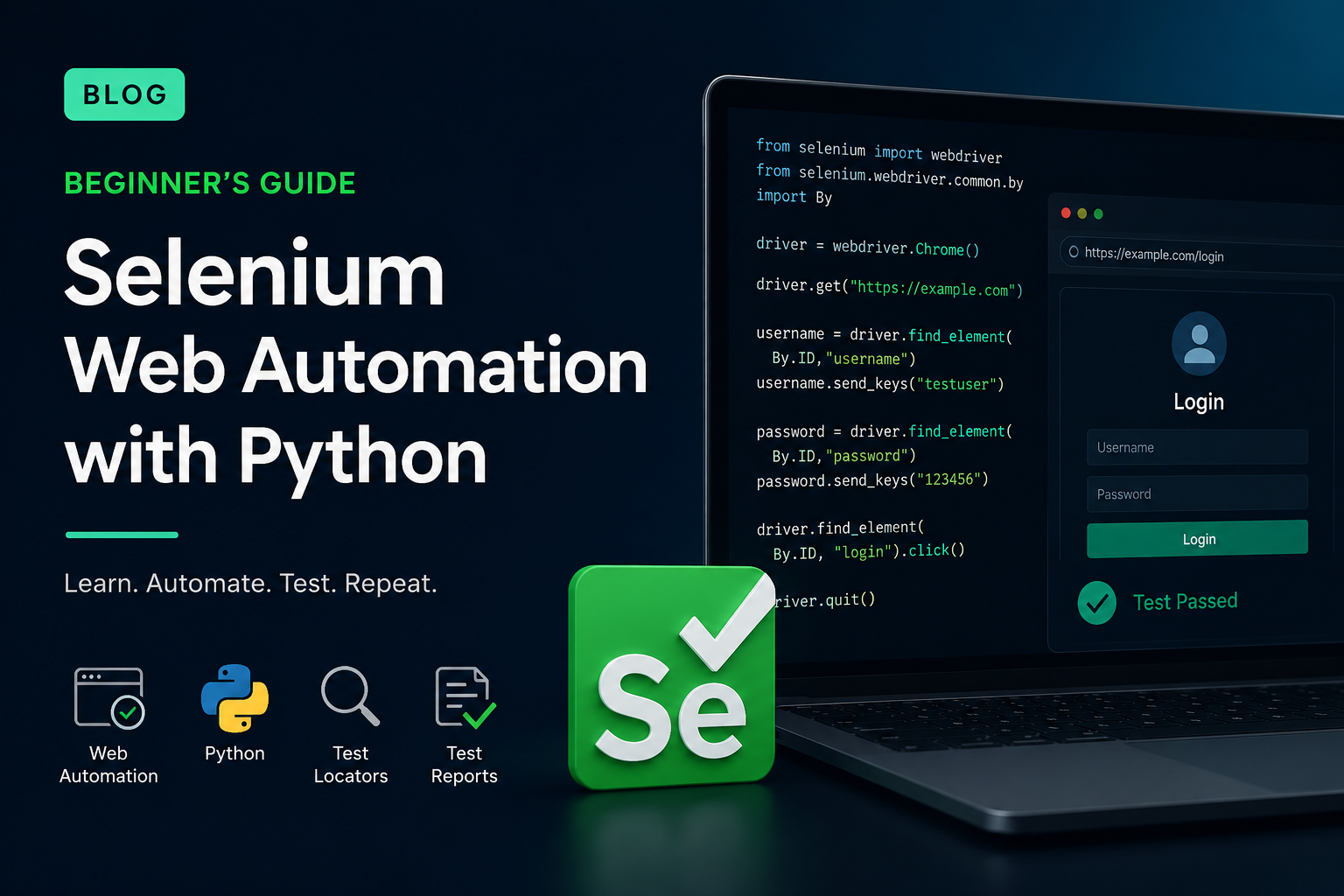
1. What is Selenium?
Selenium is an automation tool that allows us to control web browsers using code. Let's think about the action we normally perform as users on a website. For example, we open Chrome, navigate to website, enter a username and password, click the Login button, and check whether we were able to log in. Selenium can perform these actions automatically on our behalf.
For example (Python):
This code opens the specified website in the browser.
driver.get("https://example.com")
This code finds the username field and enters beril into it.
driver.find_element(By.ID, "username").send_keys("beril")
This code finds the Login button and clicks on it.
driver.find_element(By.ID, "login").click()
The basic logic of Selenium:
- Browser → Find a element → Perform an action → Verify the result
2. What does Selenium test?
Selenium is mainly used to test and automate web applications.
For example, we can automatically test the following action on an e-commerce website:
- User login
- Product search
- Adding a product to the cart
- Filling out a form
- Checkout process
- Verify that the user is redirect to the correct page
For example, in a login test, Selenium can fill in the username and password fields, click the Login button and verify that the Dashboard page opens after a successful login.
3. Selenium is not a programming language
There is an important distinction here.
Selenium is not a programming language; it is a web automation tool. Selenium can be used with different programming languages.
For example:
- Phyton
- Java
- C#
- Javascript
- Ruby
In this series, we will use Python + Selenium
Here, Python will be our programming language, while Selenium will be the automation tool we use to control the web browser.
4. What is Selenium WebDriver?
WebDriver is one of the core components that allows Selenium to communicate with a web browser.
We can think of it simply like this
Our Python code → Selenium WebDriver → Chrome → Website
Our python code communicates with Selenium WebDriver and WebDriver communicates with the browser.
For example:
driver.get("https://google.com")
When we write this code, Python does not directly send a command to Chrome. Instead, Selenium uses WebDrive to tell the browser to perform the requested action.
5. What is driver?
We will frequently see the word driver in Selenium code. “driver” is the object that allows us to control the browser session we have opened.
For example:
driver.get("https://google.com")
Here, driver represents the browser. Later we can perform many different actions through driver.
For example:
It navigates back to the previous page.
driver.back()
It refreshes the page.
driver.refresh()
It closes the browser session.
driver.quit()
6. What can we do with Selenium?
Using Selenium, we can perform many actions in a browser just like a real user.
Opening a website
driver.get("https://example.com")
Finding an element
driver.find_element(...)
Entering text into an input field
element.send_keys("Beril")
Clicking a button
element.click()
Reading the text of an element
element.text
Getting the page title
driver.title
Closing the browser
driver.quit()
These are the basic building blocks we will use while learning Selenium.
7. How does Selenium find an element?
One of the most important concepts when learning Selenium is finding elements.
For example, imagine that our web page contains the following HTML code:
<input id="username" type="text">
We need to tell Selenium to find this element. For this, we use a locator. A locator is a method used to identify a specific element on a web page. For example, we can find the element using its ID:
driver.find_element(By.ID, "username")
Here:
By.ID
Specifies which method we will use to find the element.
"username"
This is the ID value of the element we want to find.
8. Types of Locators
Selenium provides different locator strategies.
For example:
ID
NAME
CLASS_NAME
TAG_NAME
LINK_TEXT
PARTIAL_LINK_TEXT
CSS_SELECTOR
XPATH
However, we do not need to memorize all of them at the beginning. We will especially focus on these three methods:
- By.ID
- By.CSS_SELECTOR
- By.XPATH
We will learn these one by one using real HTML examples in the upcoming sections.
9. Our First Selenium Script
Now that we understand the basic concept, we can write our first Selenium program.
from selenium import webdriver
driver = webdriver.Chrome()
driver.get("https://www.google.com")
print(driver.title)
driver.quit()
Now let's examine this code line by line.
from selenium import webdriver
We import Selenium's WebDriver component into our Python project.
driver = webdriver.Chrome()
We start the Chrome browser.
driver.get("https://www.google.com")
We open the Google website.
print(driver.title)
We print the title of the opened page to the terminal.
driver.quit()
We close the browser session.
Comments
Please log in to leave a comment.
No comments yet. Be the first to comment!